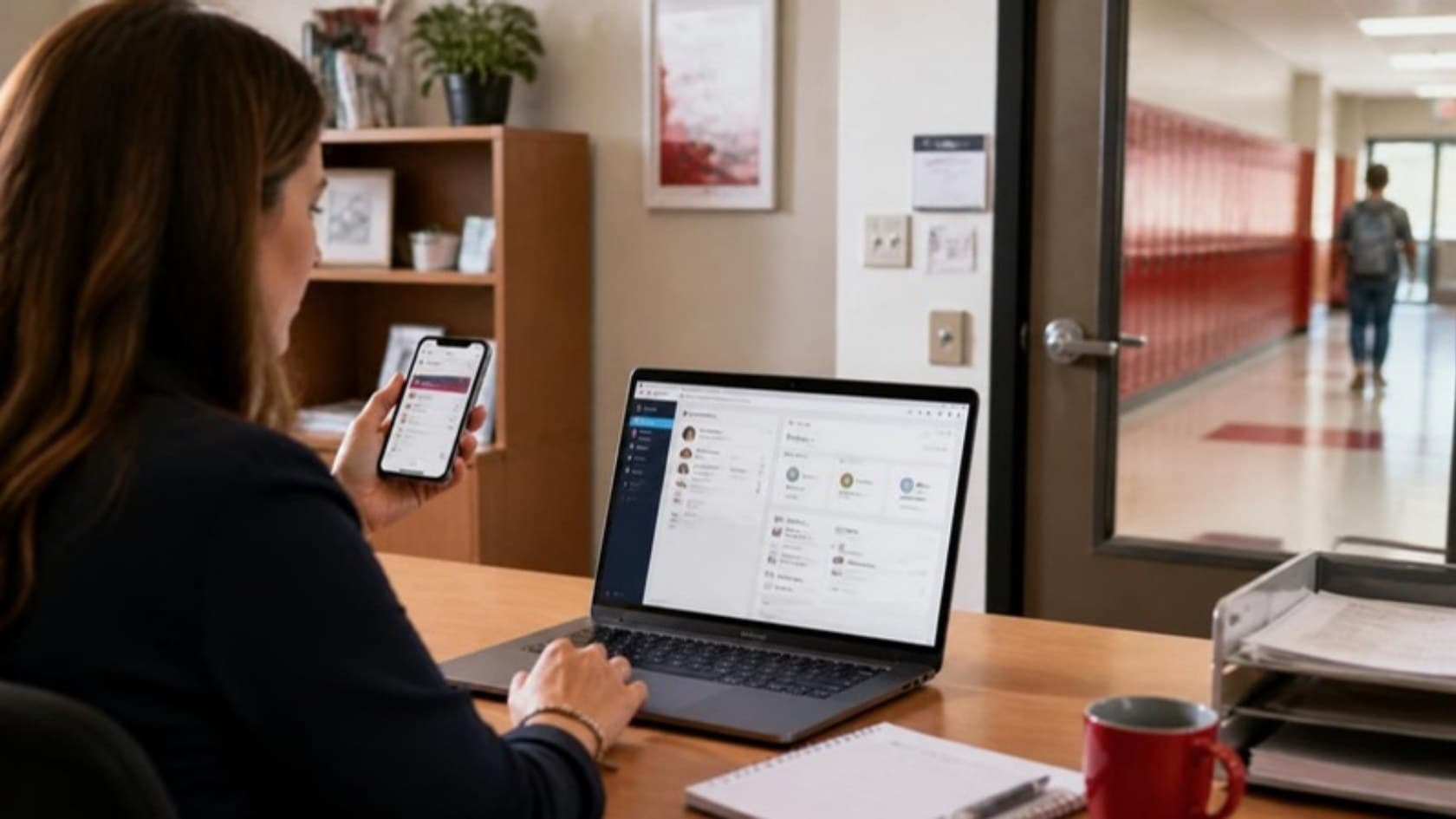

A driver finishes a delivery and sends a photo in a chat group. A technician writes notes on a printed job sheet. At the end of the day, someone in the office reads both and types the details into the system that bills the customer.
Every step in that chain adds delay and a chance of error. Mobile apps for field and operations work close the gap by capturing the record once, where the work happens, and sending it straight to the systems the office already uses. Here are five ways they do it, and what to check before you buy or build one.
1. Capture the Record Where the Work Happens
The most useful thing a field app does is end the second round of data entry. A form on the phone, with required fields, drop-down choices and photo slots, produces a complete record at the moment the job is done.
That matters for leaders because records that are filled in later are filled in from memory. A record made on site has a time, a location and evidence attached, which means fewer disputes with customers and fewer calls back to the field to ask what happened.
For the technical evaluator, the work is in the form design: validation rules on the device, sensible defaults and photos compressed before upload so they do not choke a weak connection.
2. Verify the Right Item, Place and Person
Phones carry cameras and location services, which makes them good at proof. A QR or barcode scan confirms the right package or asset, a signature on screen confirms the handover, and a location check confirms the worker was where they said.
Our parcel delivery system with a driver app for a courier in Thailand works this way. Drivers scan each parcel's QR code to confirm the package, capture the customer's signature at the door and record a reason when a drop fails. They also photograph odometer readings and fuel receipts at the start and end of each run.
Verification can also apply to staff. In a visitor pass and gate security app we built for a UK company serving gated estates, guards validate passes with a QR scan and can clock in only at the location the estate admin sets.
3. Give Each Person Today's List
Field staff waste time when they have to phone the office to ask what is next. An app that shows each person their assigned jobs, in order, with addresses, notes and the route to the next stop, removes that back-and-forth.
The list should change as the day changes. When the office reassigns a job, it should appear on the right phone without a call, and the worker who loses it should see that too.
Assigned jobs or visits for the day, in a sensible order
Customer or site details and any special instructions
Route to the next stop through a maps integration
Status buttons that tell the office what is done and what is pending
4. Keep Working Without a Signal
Warehouses, basements, plant floors and rural roads all have weak or no coverage. An app that freezes there gets abandoned, and staff go back to paper.
Offline support needs to be designed, not added later. Decide which tasks must work without a connection, store the records safely on the device and define how the app resolves a conflict when two people changed the same job before syncing.
5. Send Data Straight Into Office Systems
A field app that does not talk to your other systems just moves the re-keying to a new screen. The value comes when a completed job updates the ERP, the warehouse system, the CRM or the billing tool directly.
That is an integration decision as much as an app decision. List the systems that need each record, check whether they offer an API, and agree which system is the single source of truth for customers, stock and jobs.
An app can also extend a system you already run. Our bedside logging and family app for an elder care provider extended a web system the provider already ran: carers log meals, fluids, vitals and medicines on a phone as they happen, and relatives see the same events on a timeline.
What to Scope First
Do not start with a list of features. Start with one workflow that is done many times a day, involves paper or chat messages, and is later re-typed by someone in the office.
Walk the workflow with the people who do it and write down each step.
Mark where information is written down, photographed or re-keyed.
Decide what the office needs from each job, and by when.
Build the app around that one workflow and test it with a small group.
Add the next workflow only when the first one is in daily use.
Checks Before You Buy or Build
Whether you buy a ready-made app or commission one, the same checks apply:
Security: how the app controls access, protects stored data and handles a lost or stolen device.
Devices: which phones your staff carry, including older Android models, and whether the app runs well on them.
Offline behavior: what works without a signal and how syncing handles conflicts.
Integrations: which of your systems it connects to, and how.
Adoption: whether real users can complete a job faster than they do today.
A ready-made app is often the right answer for a standard workflow. A custom build is worth it when your proof requirements, your process or your integrations do not fit what is on the market; our guide to custom software vs off-the-shelf covers that trade-off. If you do build, the platform choice comes next, and we cover it in native vs cross-platform mobile apps.
Key Takeaways
Mobile apps improve field and operations work when they capture the record on site, verify it, guide each worker through the day, work offline and feed your office systems. Start with one workflow, test it with real users and expand from there. See how we approach this for operations and logistics teams.
If paper, chat photos and re-keying are slowing your operations, our mobile app development team can help you scope the first workflow. Book a call to talk it through with a founder.